Using Oakshare to Publish Your Website
- Log in to files.oakland.edu using your OU userid/password.
- Create a top-level folder by clicking the
 icon. Name the folder "web" and click the "Next" button.
- Double-click on the "web" folder to go inside it. Create a subfolder by clicking the icon. Name the folder "332" and click the "Next" button.
- Double-click on the "332" folder to go inside it. Create yet another subfolder by clicking the icon. Name the folder "up" and click the "Next" button.
- Find your username In the "breadcumb" navigation tool at the top of the page, and click on it. This
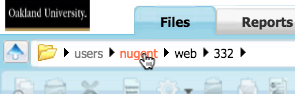
- Click on the "web" folder to select it. Click the
 button and select "Permissions" from the menu.
- In the row labeled "Public," check the "Read-only" checkbox. Click "Next" then click "Finish."
- Upload your website files for the "Up and Running" assignment to the "up" folder. Click ""Finish."
- A file named "index.html" will become the default landing page (index page) for that folder.
- Your website should now be live at
http://oakland.edu/~yourusername/332/up.
- Warning: anything you place in the 332 folder will be publicly available on the web!

This assignment description and associated
images are licensed by Jim Nugent under a
Creative Commons Attribution-Noncommercial-Share Alike 3.0 License.