![During the past decade or so the problem of writing user-centered fomputer documentation has been one of the most [...]](img/you-should-see.gif)
With the document file open in Microsoft Word, you should see something like the following:
Notice that in the first sentence, the word "computer" is misspelled. Let's also assume that, in your professional opinion, there should be a comma after the first phrase "During the past decade or so." With Track Changes, you can mark and correct these problems in much the same way as if you were editing with pen and paper.
We'll begin by turning on Track Changes. When Track Changes is on, Word keeps a record of every change that you make to a document. There are several different ways that you can turn it on or off:

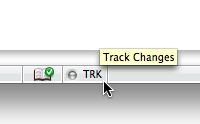
When track changes is on, the Track Changes Indicator at the bottom of the screen will light up:
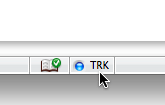
Now that Track Changes is on, you can fix the problems in the first sentence.
After you've made your changes, you should see something like the following:![During the past decade or so, the problem of writing user-centered computer documentation has been one of the most [...]](img/changes-made.gif)
Notice that the stuff you added is in color, while the stuff you deleted is noted in the margins. This information gets saved with the file, and is what the writer will see when they open the document. Experiment by making other changes to the document, including changes to the formatting.
Depending on the which view Word is in, you can see what the document will look like with all the changes in effect (the Final version) or what the document originally looked like (the Original version). To change between the views, use the pulldown menu on the reviewing toolbar:
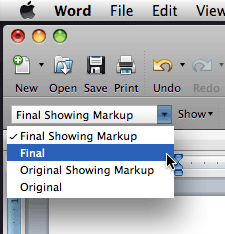
Most often you will want the view set to "Final Showing Markup."
Next >>